ABE
β
Thanks for helping test ABE early. Here's how to get set up and how to send feedback.
Beta
I'll be honest: A few weeks ago I had a bug where ABE cleared the widgets off my main Aoex dashboard. That was fixed weeks ago but just in case, I want to have a "backup".
This whole manual install thing is beta-only — eventually ABE will just be in the App Store and Chrome Web Store like a normal extension. In the meantime, let us know if anything in the instructions below was unclear or annoying, especially the Safari permissions stuff. That flow has a lot of steps.
We've seen dividers and other custom widgets randomly forget their customizations — text, colors, that kind of thing. It doesn't happen all the time but it happens. If it happens to you, send a report and try to include what you were doing right before it. Even small details help.
We don't have every Neptune module — no Ecotech Versa, Vectra, Sky, or anything like that. If you've got any of those, poke around and see if they show up right in the widget drawer and whether the code debugger makes sense for them. Let us know if anything looks weird.
Got more than one Apex? Try switching between them and see if anything bleeds over that shouldn't — dashboard layouts, widget settings, whatever. Each controller should feel totally separate. If something from one shows up on another, that's a bug we want to know about.
Installation
chrome://extensions
The extension will appear in the list — click Enable if it isn't already active.
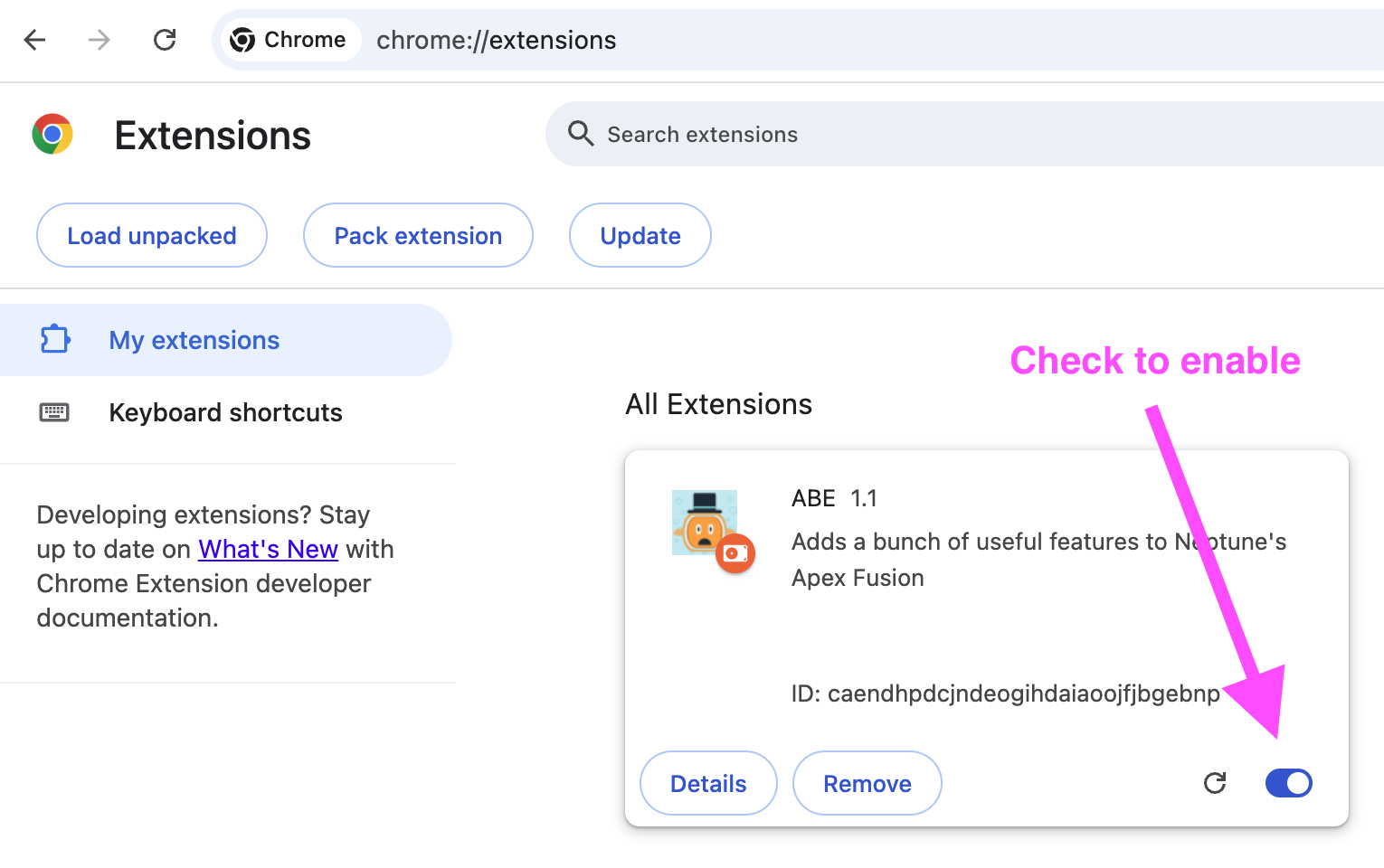
chrome://extensions and click the refresh icon on the ABE card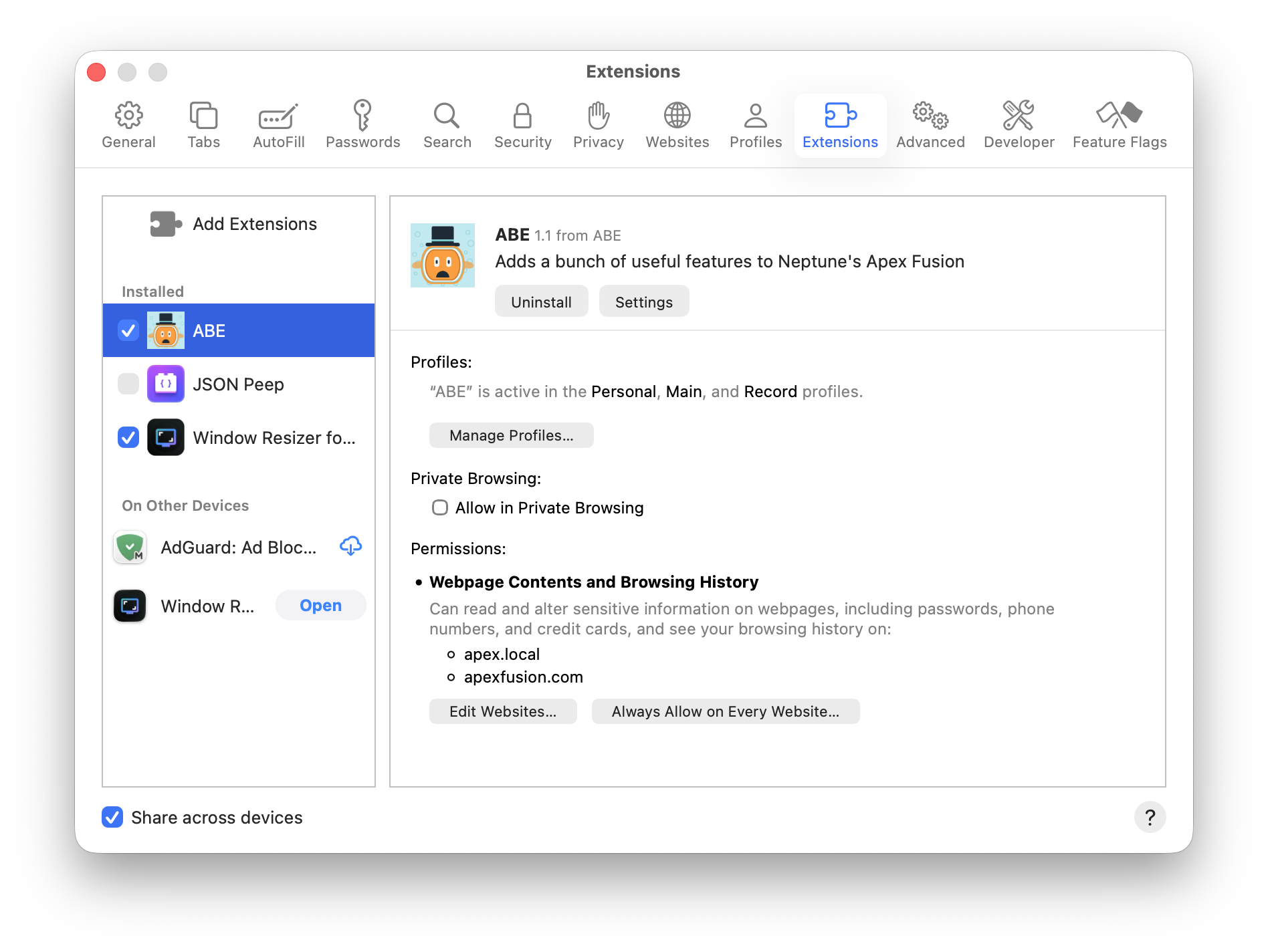
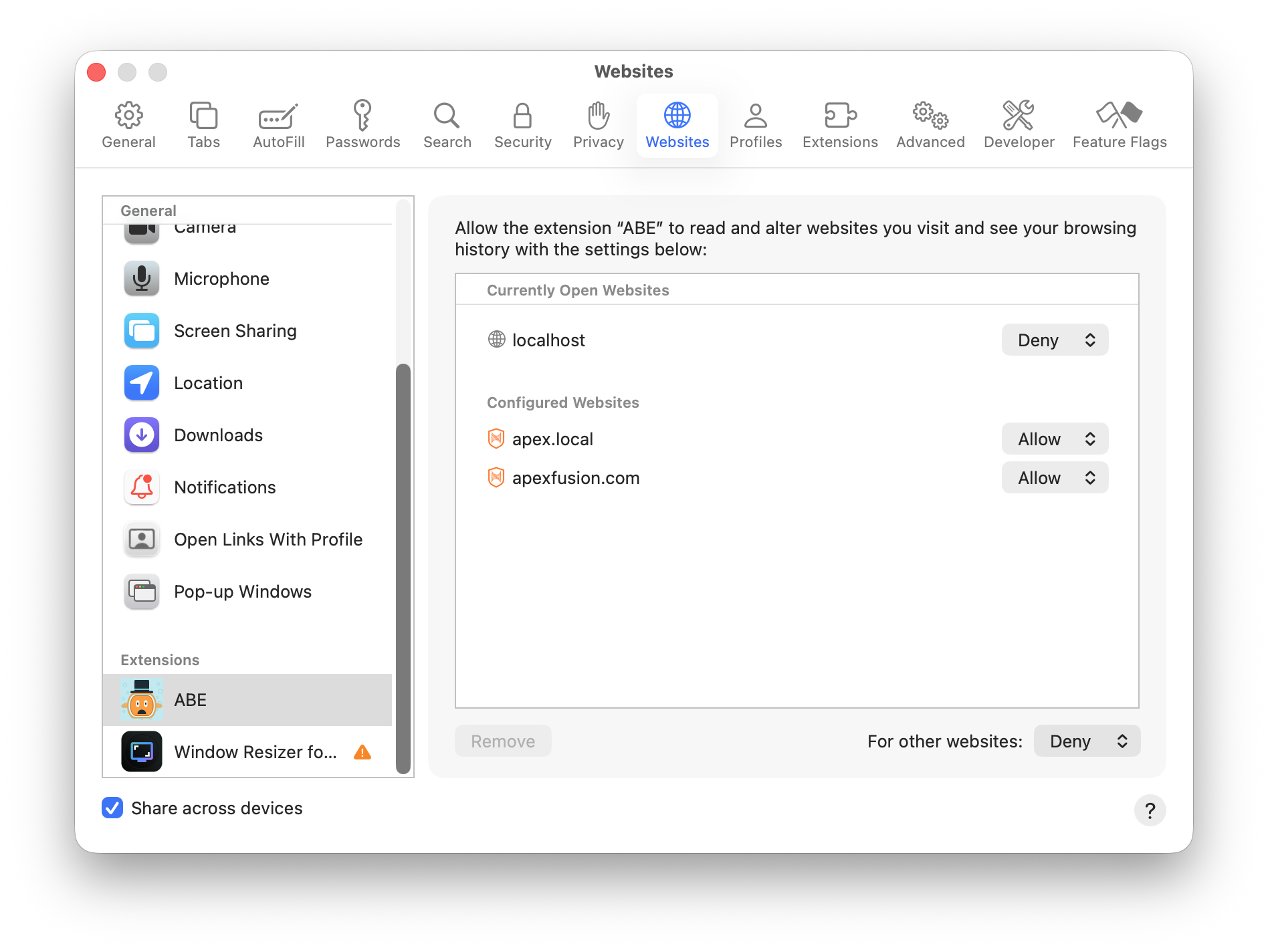
Now click Edit Websites… and grant access to both of your Apex Fusion hosts:
Feedback
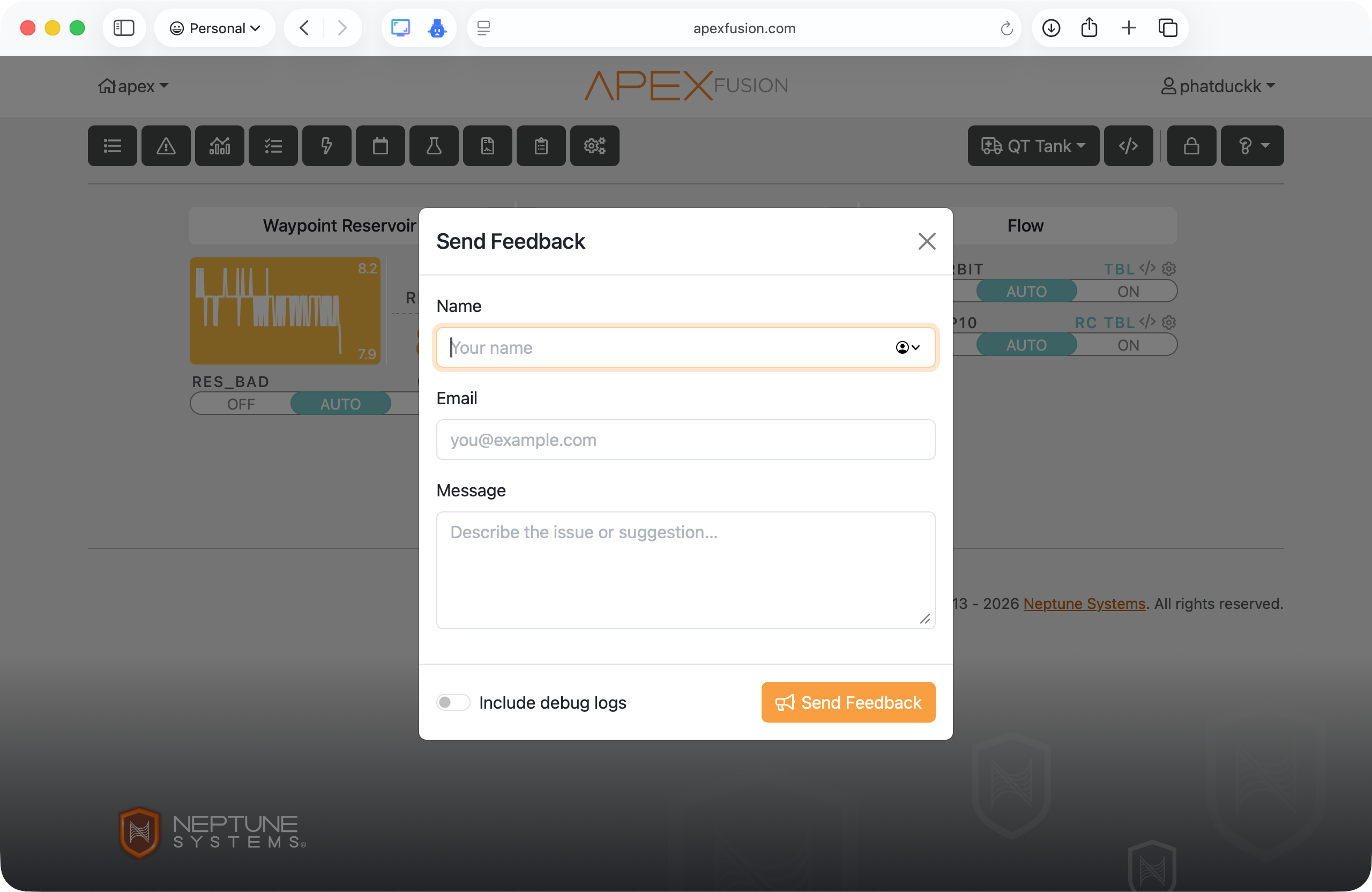
Press ⌘K on Mac or Ctrl+K on Windows from anywhere inside Apex Fusion. Type feedback and select the Feedback action.
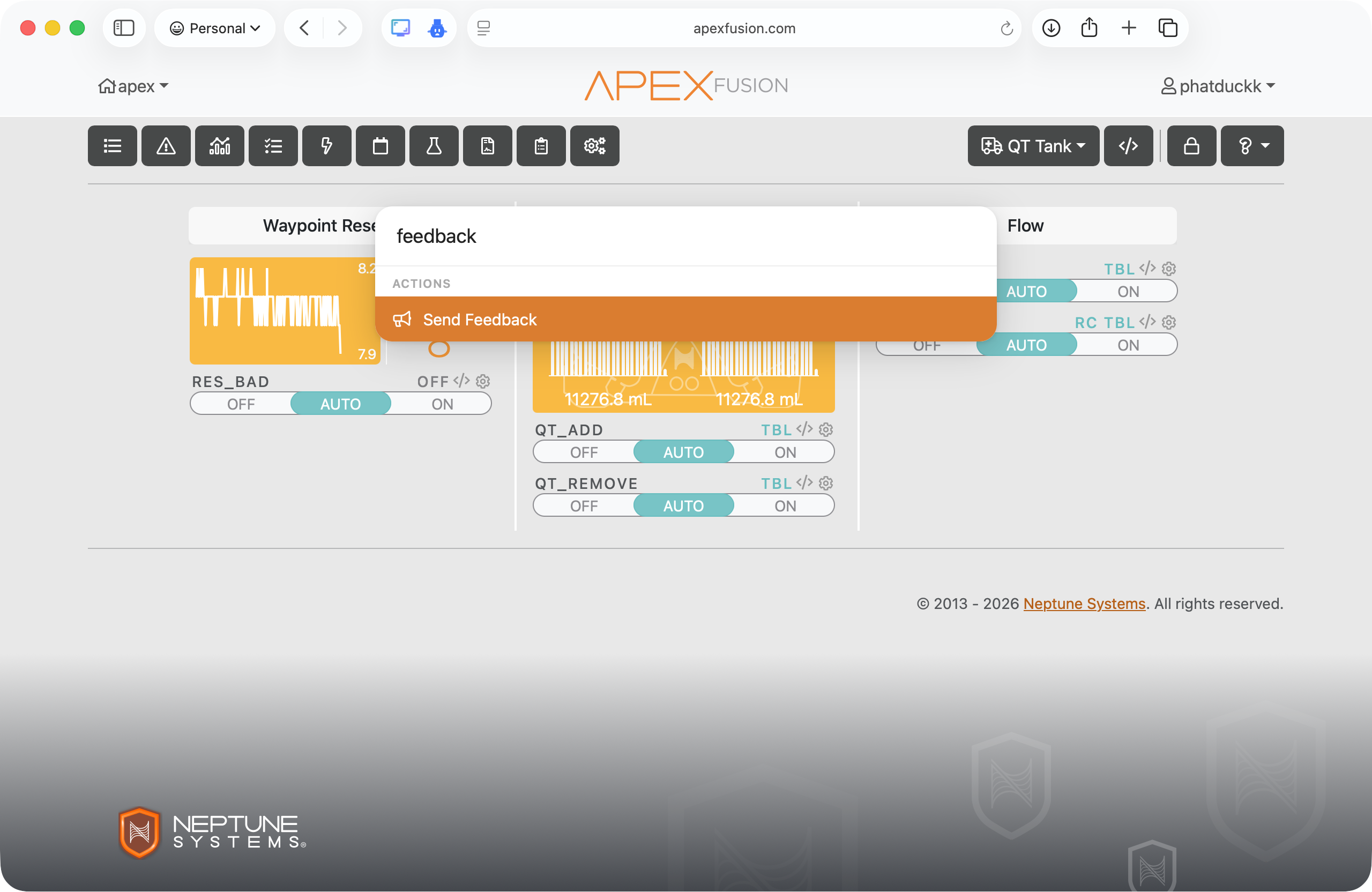
Describe the issue — what you were doing, what you expected, what went wrong. Attach a screenshot if it helps. We read everything.